






How it works
Only a few minutes separate signing up from your first broadcast. You need a screen with the IRVYS app and a browser.
Three steps to going live
Sign up. Choose the number of screens, storage and monthly or yearly billing on the pricing page and continue to registration in the Datawell shop. You confirm the scope of services in the registration form.
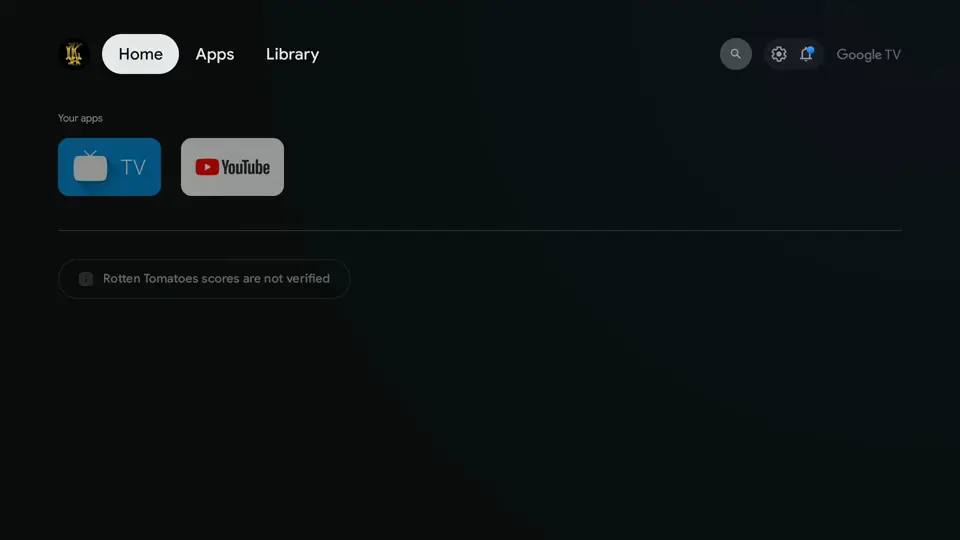
Pair a screen. Install the IRVYS app from Google Play on a Google TV or Android TV set, or on an Android player, and enter the broadcast location's 5-character code. From then on you see the screen in your device list.
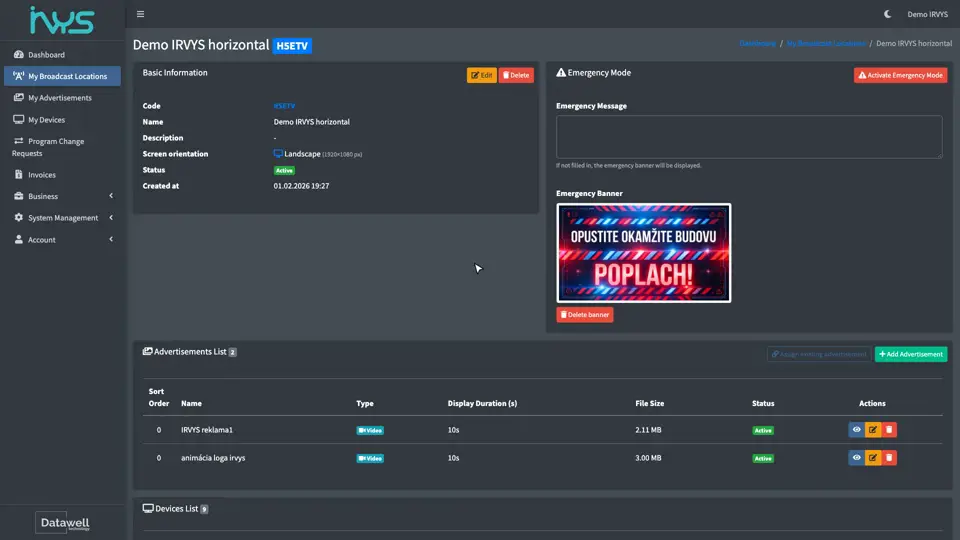
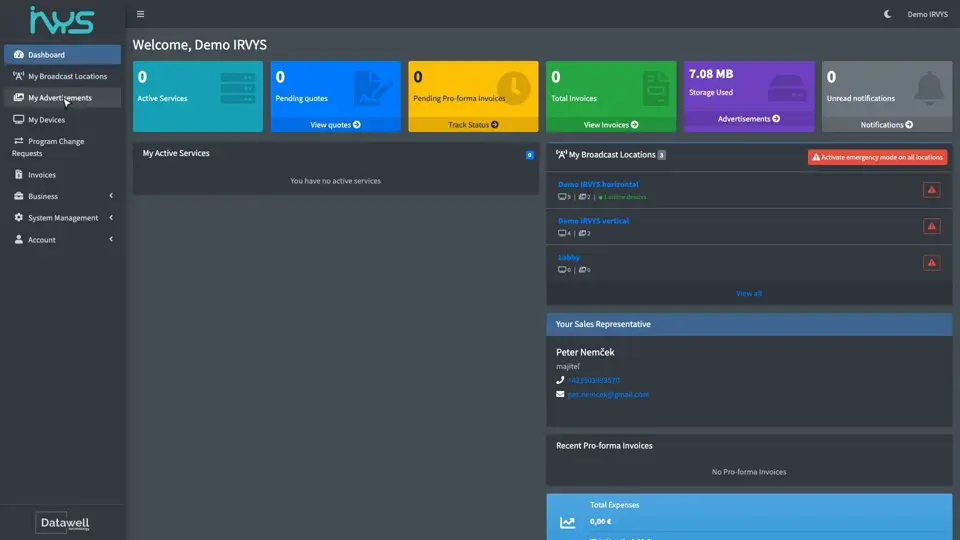
Upload content and go live. Upload an image or video, choose the broadcast locations and set the period, time slots and display time. From then on, it runs by itself.
What IRVYS runs on
- TVs with Google TV and Android TV
- Android players connected to a screen
- Android tablets and devices
What you need
- A screen or player running Android or Google TV
- An internet connection
- A browser to manage content
No smart TV? No problem.
An older TV or monitor with an HDMI input can broadcast too. Just plug in a simple Android TV box or Google TV stick and install IRVYS from Google Play. You can keep the screens you already have.
Questions
How do I connect a screen?
Start the IRVYS app on the screen and enter the broadcast location's 5-character code. Our video tutorial shows it step by step.
Which devices does IRVYS run on?
TVs with Google TV and Android TV, Android players connected to a screen, and Android tablets. You install the IRVYS app from Google Play.
Can I use an older TV?
Yes, as long as it has an HDMI input. Plug in a simple Android TV box or Google TV stick and install IRVYS from Google Play. You don’t have to replace the screen.
How many broadcast locations can I have?
As many as you need – there is no limit. You pay for screens, storage and admin access, not for broadcast locations.
Do I need to install anything on my computer?
No. You manage content and screens in a web browser on a computer, tablet or phone.
How many screens can I connect?
When you sign up you choose 3 to 1000 screens, and you can change the number later.
What content can I show?
Images (PNG, JPG, GIF) and videos (MP4 with H.264, or WebM) that you upload to your storage. For each one you set how long it is shown.
Start IRVYS on your screens
Sign up in the Datawell shop, or write to us if you'd like help choosing screens.